Connections, Roles, and Warehouses: Getting CoCo Desktop Production-Ready from Day One
Last Updated on June 8, 2026 by Editorial Team
Author(s): Satish Kumar
Originally published on Towards AI.
Connections, Roles, and Warehouses: Getting CoCo Desktop Production-Ready from Day One
Snowflake COCO Desktop| Part 1 of 8
There’s a moment every data engineer hits when first opening Snowflake’s CoCo Desktop: the welcome screen looks clean, the interface is polished, and then the connect step appears. And if your organization uses SSO, has multiple accounts, or runs a non-default role setup — that step is where things quietly fall apart.

Most getting-started content for AI coding tools assumes the connection is the easy part. With CoCo Desktop, authentication is where you make architectural decisions that affect every subsequent session: which credentials get cached, which warehouse runs agent queries, which role the agent operates under. Getting it right upfront saves a lot of friction later. Getting it wrong means your agents either fail silently or run with more privileges than you intended.
This is the first article in an 8-part series on Snowflake CoCo Desktop for data engineering teams. This one covers everything before the first prompt: installation, prerequisites, the onboarding flow, authentication options, connection management, and the decisions you’ll want to make consciously rather than by default.
TL;DR
- CoCo Desktop requires a paid Snowflake account with Cortex Code enabled and the
SNOWFLAKE.CORTEX_USERdatabase role — trial accounts won't work. - Available for macOS and Windows only (no Linux desktop client).
- The 4-step onboarding flow (welcome → connect → mode → theme) is mostly intuitive, but the Connect step catches teams who rely on SSO without a configured default browser.
- OAuth is the right default for most users. Password auth is available but not recommended; key pair is best for service accounts. PAT and Workload Identity Federation are also supported for specialized use cases.
- Default Warehouse set via the UI persists both server-side on your Snowflake account and locally in
connections.toml. That dual-write behavior matters when multiple team members share the same Snowflake user. - The
connections.tomlfile permissions (chmod 600) are a requirement on macOS/Linux, not just a best practice — Snowflake tools will refuse to read the file otherwise. - What this doesn’t cover: how to configure roles for least-privilege agent use — that’s a permission modes topic covered in subsequent Article.
Prerequisites: What You Need Before Installing
Before downloading CoCo Desktop, confirm these requirements are met. Skipping this step is the most common source of “it connects but nothing works” issues.
Account requirements:
- A paid Snowflake account (trial accounts are explicitly blocked — see the troubleshooting section below)
- Cortex Code must be enabled on the account
- Your user must have the
SNOWFLAKE.CORTEX_USERdatabase role (granted through PUBLIC by default, but your org may have revoked it) - At least one supported model must be available to your account (check
CORTEX_MODELS_ALLOWLIST)
Platform requirements:
- macOS (Apple Silicon or Intel) or Windows
- Linux is not supported for the desktop client (use Cortex Code CLI instead)
Network requirements:
- Network access to your Snowflake server
- If a model you need isn’t available in your region, an ACCOUNTADMIN must configure cross-region inference:
ALTER ACCOUNT SET CORTEX_ENABLED_CROSS_REGION = 'AWS_US';
Replace AWS_US with the appropriate region identifier (AWS_EU, AWS_APJ, AZURE_US, or ANY_REGION). This is a common first-run blocker that looks like a connection failure but is actually a model availability issue.
Quick prerequisite check — run this in any Snowflake worksheet to confirm readiness:
SELECT
 CURRENT_USER() AS user,
 CURRENT_ROLE() AS role,
 CURRENT_WAREHOUSE() AS warehouse,
 CURRENT_ORGANIZATION_NAME() || '-' || CURRENT_ACCOUNT_NAME() AS account_identifier;
If warehouse comes back NULL, you'll need to set a default before CoCo Desktop will execute agent queries.
The Onboarding Flow Is Deceptively Simple
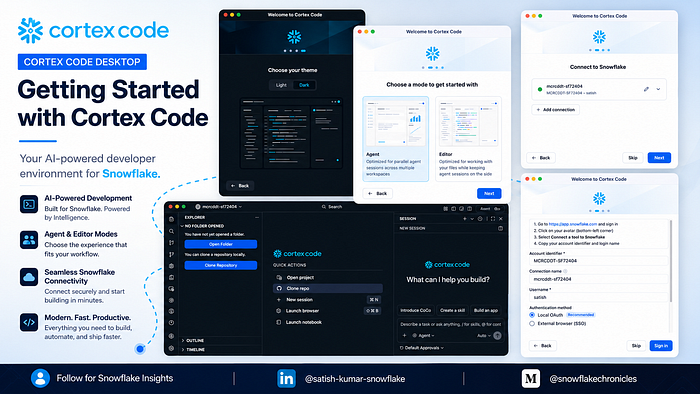
Opening CoCo Desktop for the first time sends you through four screens: welcome, connect, mode, then theme. The first and last are cosmetic. The middle two are where the real work happens.
The Connect step is where you either authenticate against an existing connection or create a new one. If you’ve already set up the Cortex Code CLI or Snowflake CLI, CoCo Desktop detects your ~/.snowflake/connections.toml automatically and shows your existing connections with a status dot. This is genuinely convenient — you don't have to re-enter anything. If you're starting fresh, you'll fill in an account identifier, a connection name, a username, and pick an authentication method.
The account identifier format trips people up consistently. It follows the pattern orgname-accountname — not the Snowflake URL format, not the legacy account.region format that older tools use. You can find it at app.snowflake.com under your avatar → "Connect a tool to Snowflake." You can also read it directly from your Snowsight URL: https://app.snowflake.com/orgname/accountname/. Worth bookmarking that path if you're setting up multiple team members.
The Mode step asks whether to start in Agent mode or Editor mode. This is not a permanent decision — you can switch at any time — but the choice sets the default layout for your first session. Agent mode is optimized for parallel agent sessions across multiple workspaces; Editor mode is optimized for working with files while keeping agent sessions on the side. More on the practical difference between these in Article 2.
One thing the onboarding flow doesn’t surface clearly: if your browser doesn’t open automatically for OAuth or SSO, there’s a “Browser didn’t open?” fallback link in the app. It’s easy to miss on first run and results in people assuming the connection failed when it just needs a manual URL copy.
Authentication Methods: A Practical Decision Tree
CoCo Desktop supports six authentication methods. The four primary ones cover most use cases; two additional methods serve specialized automation scenarios. Which one you choose should depend on your account’s security posture, not just what’s easiest to configure.
| Authentication Method | Best For | Credential Storage | Notes |
| ---------------------------------- | ----------------------------------------- | ----------------------------------- | ------------------------------------------------------------------------------------------------------------ |
| OAuth ✅ Recommended | Most human users | OS Keychain / DPAPI | Add `client_store_temporary_credential = true`; otherwise re-authentication may be required on every launch. |
| External Browser / SSO | Organizations using Okta or Azure AD | OS Keychain / DPAPI | Watch for deep-link blocking in managed browsers during initial setup. |
| Password ⚠️ Avoid | Last-resort access scenarios | Plaintext in `connections.toml` | Prefer environment variables instead of storing passwords in configuration files. |
| Key Pair (JWT) | Service accounts and automation workloads | Filesystem (`.p8` private key file) | Reliable for headless authentication; protect keys with restrictive permissions (for example, `chmod 600`). |
| PAT (Personal Access Token) | CI/CD pipelines and automation | Token file | Requires PAT feature to be enabled at the account level before use. |
| Workload Identity Federation (WIF) | AWS, Azure, and GCP workloads | Platform-native identity service | Eliminates static credentials; requires a `WORKLOAD_IDENTITY` service user configuration. |
Local OAuth (recommended for most users)
OAuth opens your browser, authenticates through Snowflake, and caches the resulting tokens in your operating system’s credential store — Keychain on macOS, Data Protection API (DPAPI) on Windows, system secret service (libsecret / GNOME Keyring) on Linux. You don’t re-enter credentials on subsequent launches.
[my-connection]
account = "myorg-myaccount"
user = "myuser"
authenticator = "oauth_authorization_code"
client_store_temporary_credential = true
The client_store_temporary_credential = true line is what enables token caching. Without it, you'll authenticate on every launch. It's not the default — add it explicitly.
External Browser / SSO
For organizations using Okta, Azure AD, or similar identity providers, SSO is often required. The setup is straightforward, but there’s a practical edge case: if your default browser blocks deep links from desktop apps (common in managed corporate environments), the OAuth redirect won’t complete. The fallback is to copy the sign-in URL manually from the app. Train your team to expect this on first setup rather than treating it as a broken install.
[my-sso-connection]
account = "myorg-myaccount"
user = "myuser"
authenticator = "externalbrowser"
client_store_temporary_credential = true
If your IdP is Okta and you don’t have browser access (e.g., SSH session), you can use native Okta by setting the authenticator to https://<okta_account_name>.okta.com.
Password
Available, but not the right default. If your account has MFA enabled, you’ll be prompted in your authenticator app on every sign-in. Passwords are stored as plaintext in connections.toml — there's no encryption layer between the file and anyone with read access to your home directory. Use OAuth or SSO wherever possible.
If you must use passwords, Snowflake recommends setting the value via environment variable rather than storing it in the config file:
export SNOWFLAKE_CONNECTIONS_MYCONNECTION_PASSWORD="your-password"
Key Pair (JWT)
The right choice for service accounts and automated workflows. RSA key pair authentication doesn’t involve browser redirects, making it reliable in headless environments. Configure it by editing connections.toml directly:
[my-keypair-connection]
account = "myorg-myaccount"
user = "myuser"
authenticator = "snowflake_jwt"
private_key_path = "~/.ssh/snowflake_rsa_key.p8"
Keep the private key file permissions restricted to your user (chmod 600). CoCo Desktop reads the path at connection time — it doesn't copy the key elsewhere. If your private key is passphrase-protected, set the PRIVATE_KEY_PASSPHRASEenvironment variable.
Programmatic Access Token (PAT)
For machine-to-machine authentication without human interaction. The feature must be enabled on the account before use. Useful in CI/CD pipelines where browser-based flows aren’t possible.
[my-pat-connection]
account = "myorg-myaccount"
user = "myuser"
authenticator = "PROGRAMMATIC_ACCESS_TOKEN"
token_file_path = "/path/to/pat-token"
Workload Identity Federation (WIF)
For CI/CD environments where you want to use your pipeline’s native identity (AWS IAM, Azure managed identity, GCP service account, or OIDC) to authenticate to Snowflake without static credentials. Requires a service user configured with WORKLOAD_IDENTITY in Snowflake.
[my-wif-connection]
account = "myorg-myaccount"
authenticator = "WORKLOAD_IDENTITY"
workload_identity_provider = "AWS"
Supported providers: AWS, AZURE, GCP, OIDC.
The connections.toml File: More Than Just Credentials
CoCo Desktop reads and writes ~/.snowflake/connections.toml as its source of truth for connection configuration. Understanding this file matters because it's shared across CoCo Desktop, Cortex Code CLI, Snowflake CLI (snowcommand), and the VS Code Extension — a change in one affects all others.
Important: If the
SNOWFLAKE_HOMEenvironment variable is set, tools look for configuration files in that directory instead of~/.snowflake/. Worth noting for teams with custom environments or CI/CD setups.Also important: Snowflake CLI has a separate
config.tomlfile. If bothconfig.tomlandconnections.tomlexist, Snowflake CLI reads connections only fromconnections.tomland ignores those inconfig.toml. Thedefault_connection_namesetting is read fromconfig.tomlregardless. This dual-file behavior trips up teams that configure connections inconfig.tomland then wonder why CoCo Desktop doesn't see them.
A fully configured entry looks like this:
default_connection_name = "dev"
[dev]
account = "myorg-myaccount"
user = "myuser"
authenticator = "oauth_authorization_code"
client_store_temporary_credential = true
warehouse = "COMPUTE_WH"
role = "MY_ROLE"
database = "MY_DB"
schema = "PUBLIC"
[prod]
account = "myorg-prodaccount"
user = "myuser"
authenticator = "externalbrowser"
client_store_temporary_credential = true
A few things worth noting here. The default_connection_name field sets which connection CoCo Desktop opens on launch — useful when you have dev and prod accounts and don't want to click through a picker every time. Named connections ([dev], [prod]) allow you to keep environment-specific settings separated without maintaining multiple config files.
The warehouse, role, database, and schema fields set session defaults. They're optional — CoCo Desktop will use your Snowflake user's defaults if they're omitted — but specifying them explicitly avoids the "no warehouse found" errors that catch new users during their first agent query.
Note the section name format: in connections.toml, sections are [my-connection] (without the connections. prefix). In config.toml, they'd be [connections.my-connection]. Using the wrong prefix in the wrong file is a silent failure — the connection just doesn't appear.
Default Warehouse: The Setting That Lives in Two Places
This one tripped up most teams on first encounter. CoCo Desktop lets you set a default warehouse from the connection dropdown in the navigation bar (click your connection name → “Set Default Warehouse”). What the UI doesn’t make obvious is that this setting persists in two places simultaneously: it runs ALTER USER SET DEFAULT_WAREHOUSE on your Snowflake account server-side and updates your local connections.toml file.
The server-side change means if you set the default warehouse from CoCo Desktop, it applies across all your sessions and devices, not just the machine where you configured it. For shared Snowflake users (common in smaller teams), a warehouse change one person makes in CoCo Desktop will affect everyone else’s default session — even outside CoCo Desktop.
The local connections.toml update means subsequent connections from CoCo Desktop use the selected warehouse without needing to read the server-side default each time.
The practical recommendation: If you want the setting to be per-machine and per-connection only, set your warehouse in connections.toml directly rather than through the UI. Use the UI option only when you intentionally want it applied account-wide. Communicate this decision to your team — otherwise one team member's UI click overwrites another's session defaults.
Managing Multiple Connections
Once past initial setup, connection management in CoCo Desktop is handled from the connection dropdown in the navigation bar. The options there are:
- Manage Snowflake Connections — opens a dialog to switch, add, edit, or delete connections
- View Snowflake Connections — shows your
connections.tomlfile for quick reference - Refresh Snowflake Connections — reloads from disk, useful after manually editing
connections.toml - Change Role — switches the active Snowflake role without disconnecting the session
- Default Warehouse — choose the warehouse new sessions use
- Private Mode — toggles a mode for sensitive work (no conversation history stored)
Change Role is the one most teams overlook during initial configuration. The role the agent runs under determines what data it can query and what DDL/DML it can execute. Running with ACCOUNTADMIN because it’s the default is a common and avoidable mistake. Article 8 covers permission modes in detail — but the starting point is to configure a role in connections.toml that has only the access your agent actually needs.
You can also open the connection manager by typing /connections in the chat input, which is faster than navigating through the menu once you're in a session.
What This Means for Teams
Individual setup is straightforward once you understand the auth options. Team rollouts have a few additional considerations worth addressing upfront.
Shared connections.toml templates. Rather than having each team member configure connections from scratch, maintain a shared template in your internal docs or repo (without credentials — just the structure and field names). This reduces the variant configurations that make debugging harder.
connections.toml file permissions (requirement, not optional). On macOS and Linux, Snowflake tools require the config file to limit permissions to read and write for the file owner only. Without this, the CLI and CoCo Desktop will refuse to read the file. This isn't a best practice — it's enforced:
chmod 600 ~/.snowflake/connections.toml
chmod 700 ~/.snowflake
echo "~/.snowflake/connections.toml" >> ~/.gitignore
Onboarding verification. There are two approaches to confirming a working connection:
From the CLI (fastest):
snow connection test -c my-connection
This validates the connection can reach Snowflake and returns the account, role, database, and warehouse in a clean table. If anything shows “not set,” you know exactly what’s missing.
From within CoCo Desktop: Open a SQL worksheet and run:
SELECT CURRENT_USER(), CURRENT_ROLE(), CURRENT_WAREHOUSE();
If all three return expected values, the session is configured correctly. If warehouse comes back NULL, set it via connections.toml or the UI dropdown.

Key Lessons / What I’d Do Differently
The surprise: The 4-step onboarding flow feels complete, but it doesn’t surface the client_store_temporary_credential setting. Without it, OAuth-authenticated users re-authenticate on every launch. This is a usability friction point that new users consistently hit without understanding why — the connection "works" but feels unreliable. Add this field explicitly to every OAuth and SSO connection.
The documentation gap: The Default Warehouse UI action writes to two places (server-side and local config) simultaneously, but the interface doesn’t signal this dual-write. Teams with multiple CoCo Desktop users sharing Snowflake accounts need to decide which approach to use and communicate it — otherwise one team member’s UI action overwrites another’s session defaults everywhere.
The cross-region gotcha: If your account is in a region where the model you need isn’t available, agent queries will fail with cryptic errors. The fix is ALTER ACCOUNT SET CORTEX_ENABLED_CROSS_REGION — but only an ACCOUNTADMIN can run it, and nothing in the CoCo Desktop UI tells you this is the problem. Check model availability early.
The practical recommendation: Start with OAuth for all human users, key pair for service accounts, PAT or WIF for CI/CD pipelines, and define roles and warehouses explicitly in connections.toml from day one. Every hour spent getting this right saves two hours of debugging agent failures that trace back to connection context.
The trial account blocker: If you’re running a Snowflake trial account, you’ll hit this error the moment you try to use CoCo Desktop:
Error: Access denied for trial accounts.
Oops! Cortex agent was not able to complete the request, please try again.Session: a1f5cc8c-f9f6-43d2-841a-413598a413b1
Error: Access denied for trial accounts.
This isn’t a misconfiguration — Cortex Code Desktop requires a paid Snowflake account with Cortex Code enabled. Trial accounts don’t have access to the underlying Cortex agent infrastructure. If you see this error, confirm your account type with your Snowflake account team before spending time debugging authentication settings that aren’t the problem.
The CORTEX_USER role blocker: If your organization has revoked SNOWFLAKE.CORTEX_USER from the PUBLIC role (common in security-conscious orgs), your user won't be able to invoke Cortex models even with a valid connection. Ask your admin to grant it:
GRANT DATABASE ROLE SNOWFLAKE.CORTEX_USER TO ROLE my_role;
Summary
CoCo Desktop’s connection layer is the foundation everything else runs on. Authentication method, role, and default warehouse aren’t just setup preferences — they determine what the agent can see and do in every subsequent session. OAuth with token caching is the right default for most users; SSO for organizations with identity providers; key pair for automation; PAT or WIF for CI/CD pipelines.
The connections.toml file is the authoritative configuration source and is shared across CoCo Desktop, Cortex Code CLI, Snowflake CLI, and the VS Code Extension — changes propagate across all surfaces. Setting explicit roles and warehouses in config — rather than relying on Snowflake user defaults — is the difference between an agent that works reliably and one that fails unpredictably depending on session state.
Confirm prerequisites (paid account, CORTEX_USER role, model availability, cross-region inference if needed) before your first launch. Then validate with snow connection test or a quick SELECT CURRENT_USER() query. If those pass, you're ready for your first prompt.
Demo:
Article 2 covers the next decision: Agent mode versus Editor mode, and the situations where the difference actually matters to how you work.
Snowflake · Data Engineering · AI Tools · Developer Tools · Cloud Computing
Series: Snowflake CoCo Desktop — The Practitioner’s Field Guide | Article 1 of 8
This article represents the author’s personal views and experience, not those of any employer.
Join thousands of data leaders on the AI newsletter. Join over 80,000 subscribers and keep up to date with the latest developments in AI. From research to projects and ideas. If you are building an AI startup, an AI-related product, or a service, we invite you to consider becoming a sponsor.
Published via Towards AI
Towards AI Academy
We Build Enterprise-Grade AI. We'll Teach You to Master It Too.
15 engineers. 100,000+ students. Towards AI Academy teaches what actually survives production.
Start free — no commitment:
→ 6-Day Agentic AI Engineering Email Guide — one practical lesson per day
→ Agents Architecture Cheatsheet — 3 years of architecture decisions in 6 pages
Our courses:
→ AI Engineering Certification — 90+ lessons from project selection to deployed product. The most comprehensive practical LLM course out there.
→ Agent Engineering Course — Hands on with production agent architectures, memory, routing, and eval frameworks — built from real enterprise engagements.
→ AI for Work — Understand, evaluate, and apply AI for complex work tasks.
Note: Article content contains the views of the contributing authors and not Towards AI.
Related posts
Recent Posts