
I Gave My Entire Team a Private ChatGPT for $0 a Month. Here’s Exactly How.
Last Updated on June 14, 2026 by Editorial Team
Author(s): Services Ground
Originally published on Towards AI.

Two free open-source tools. One afternoon. No subscription, no rate limits, no data leaving your network — ever.
Let me start with the thing that surprises people most.
The interface your team uses looks identical to ChatGPT.
Individual accounts. Full chat history. Document upload. Model switching. Voice input. Web search. Dark mode. Keyboard shortcuts.
Your team won’t notice the difference. Except the bill — because there isn’t one.
This is what Ollama + Open WebUI looks like in production for a business team. And after walking through the full setup, I want to document exactly how it works — because most guides cover the solo developer case and skip the parts that actually matter when multiple people need to use it.
What These Two Tools Actually Do
Before touching a terminal, the mental model matters. Most setups break because people don’t understand which layer is doing what.
Ollama is the engine. It downloads open-source AI models from the internet, loads them into your GPU’s memory, and runs inference when a request comes in. It exposes a local API on port 11434. When your team sends a message to the AI, Ollama is doing the actual computation. Your team never interacts with Ollama directly — they never see it.
Open WebUI is the dashboard. It’s a web application running in a Docker container that connects to Ollama’s API and presents a polished chat interface in the browser. It handles everything user-facing: accounts, conversation history, document uploads, model switching, team administration, and access control. Open WebUI never touches your models directly — it sends requests to Ollama and displays the responses.
The mental model: Ollama is invisible infrastructure. Open WebUI is what your team actually uses.
This separation is the key to troubleshooting when things go wrong. If the AI is slow or wrong, the problem is in Ollama or the GPU. If the interface breaks, the problem is in Open WebUI or Docker. If teammates can’t connect, the problem is in the network configuration. Knowing which layer has the issue saves hours.
The Step Nobody’s Tutorial Covers: Making Ollama Talk to Your Team
Here’s the mistake that breaks almost every team deployment.
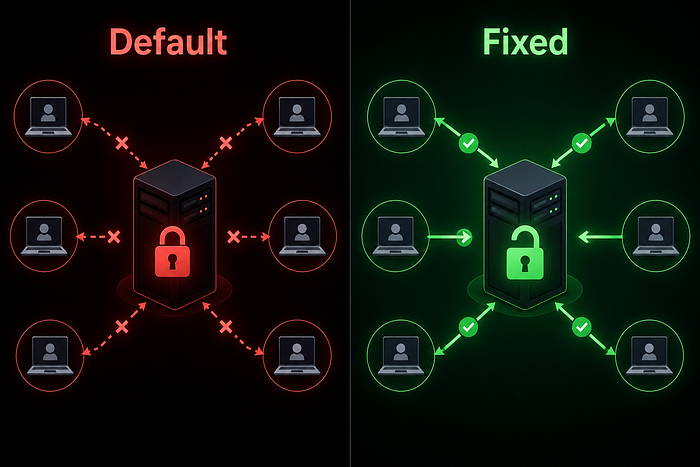
By default, Ollama only listens on localhost. That means only the machine it’s installed on can talk to it. Open WebUI running in Docker? Can’t reach it. Teammates on other machines in the office? Can’t reach it.
Every solo developer tutorial skips this because solo developers never hit it. But for a team, it’s the first wall you run into — and it’s confusing because Ollama appears to be running fine when you test it locally.
The fix is one configuration change. On Ubuntu with systemd:
sudo systemctl edit ollama.service
Add these lines:
[Service]
Environment="OLLAMA_HOST=0.0.0.0"
Save. Then:
sudo systemctl daemon-reload
sudo systemctl restart ollama
Now Ollama listens on all network interfaces. Open WebUI can reach it. Teammates on the local network can reach it. The entire team setup becomes possible with this one change.
A security note worth stating clearly: this exposes the Ollama API on your local network, which is required for team access. It does not expose it to the internet — as long as your firewall is configured to block port 11434 from external connections, which it should be. Ollama has no built-in authentication, so you never want it directly accessible from the public internet. Open WebUI handles authentication for your team instead.
Installing Ollama and Pulling Your First Models
Install Ollama with one command:
curl -fsSL https://ollama.com/install.sh | sh
This installs Ollama as a system service that starts automatically on boot and detects your GPU. Verify it worked:
ollama --version
Now pull the models your team will actually use. Start with these:
# General tasks — writing, email, analysis, Q&A
ollama pull qwen2.5:14b
# Coding — debugging, code review, documentation
ollama pull qwen2.5-coder:32b# Reasoning — structured analysis, complex problems
ollama pull deepseek-r1:14b# Fast queries — quick tasks, high concurrent users
ollama pull qwen2.5:7b# Required for RAG document Q&A
ollama pull nomic-embed-text
Don’t pull everything at once. Start with Qwen 2.5 14B and nomic-embed-text. Add the others once you’ve verified the base setup works. Models range from 4–20GB each and storage fills faster than you expect.
Which model for which work:
Qwen 2.5 14B handles the majority of daily business tasks — writing, summarizing, email drafting, Q&A, analysis — at quality that competes with GPT-4o for most practical purposes. It fits in 9GB of VRAM with quantization, leaving headroom for Open WebUI and other processes on a 24GB GPU.
Qwen 2.5 Coder 32B is purpose-built for development work. It scores near-frontier on coding benchmarks and uses about 20GB VRAM with quantization — fits on a 24GB GPU with a bit left over.
DeepSeek R1 14B is the reasoning specialist. For tasks involving structured analysis, math, or multi-step logic, it outperforms general models of similar size.
Installing Open WebUI
Docker makes this a single command:
docker run -d \
 --name open-webui \
 --restart always \
 -p 3000:8080 \
 --add-host=host.docker.internal:host-gateway \
 -v open-webui:/app/backend/data \
 ghcr.io/open-webui/open-webui:main
Two flags here that matter for team deployments and that many tutorials omit:
--restart always ensures Open WebUI starts automatically if the server reboots. Without this, your team comes in Monday morning to a dead interface after a weekend power cycle.
--add-host=host.docker.internal:host-gateway is what allows the Docker container to reach the Ollama process running on the host machine. On Linux this flag is required. Without it, Open WebUI can't find Ollama and you get a persistent connection error.
Open WebUI is now running at http://your-server-local-ip:3000. Find your server's local IP:
ip addr show | grep "inet " | grep -v "127.0.0.1"
Visit that address in your browser. The first person to access it creates the admin account — that becomes the administrator for the entire team installation. Use a strong password.
Configuring Open WebUI for a Team
This is where most guides stop. It’s also where the real team setup work begins.
Lock Down Registration
By default Open WebUI allows anyone who can reach the URL to create an account. For a business deployment, change this immediately.
Go to Admin Panel → Settings → General → Default User Role and set it to Pending. New registrations require admin approval before accessing the system. Or disable registration entirely and create accounts manually for each team member.
Create Team Accounts
Admin Panel → Users → Add User. Enter name, email, and a temporary password for each person. Set their role — User for standard access, Admin for anyone who needs to manage models and settings.
Each team member gets their own login, their own conversation history, and their own settings. Share the server URL, their email, and their temporary password. They set their own password on first login.
Set a Default Model and System Prompt
Under Admin Panel → Settings → Default Model, set Qwen 2.5 14B as the default. Users can switch models from the dropdown in any conversation, but having a sensible default means new team members aren’t confused on first login.
A global system prompt helps keep behavior consistent across the team:
You are a helpful AI assistant for our team. Help with writing,
analysis, coding, research, and answering questions. Be concise
and accurate. If you're unsure about something, say so rather
than guessing.
Individual users can override this with their own system prompts for specific workflows. The global prompt is the baseline.
Remote Access for Team Members Working From Home
Team members on the office network connect directly at http://your-server-ip:3000. Remote workers need a way to reach the server from outside.
The solution is Tailscale — a tool that creates an encrypted private network between your server and your team members’ devices. Each device gets a stable address that works from anywhere. No port forwarding. No public ports open. No VPN server to configure and maintain.
Install Tailscale on the server:
curl -fsSL https://tailscale.com/install.sh | sh
sudo tailscale up
Follow the authentication link that appears. Then find the server’s Tailscale address:
tailscale ip -4
This gives you an address like 100.x.x.x. That's what remote team members use: http://100.x.x.x:3000
Each remote team member installs Tailscale on their device — Windows, macOS, iOS, Android — and joins your network. Once connected, Open WebUI works from anywhere exactly as it does in the office. The connection is encrypted. Nothing travels over the public internet unprotected.
Tailscale is free for up to three devices. Beyond that it’s $5 per user per month — significantly less than the ChatGPT subscription it replaces.
The Second Mistake That Breaks Team RAG
RAG — Retrieval Augmented Generation — is what lets your team upload company documents and ask questions against them directly. Meeting notes, product specs, SOPs, contracts, client briefs, technical docs. The AI reads them and answers from your actual content rather than generic training data.
Open WebUI has RAG built in. But there’s a configuration issue that almost every team deployment hits.
The default RAG embedding uses worker-based processing that consumes approximately 500MB of RAM per worker. For one person, that’s fine. For a team of ten people all uploading documents and running queries simultaneously, it compounds into a memory problem that slows or crashes the server.
The fix is a settings change:
Admin Panel → Settings → Documents → Embedding Model Backend → change from Default to Ollama
Set the Embedding Model to: nomic-embed-text
That’s the model you pulled earlier. Now RAG uses Ollama for embeddings — efficient, fast, and stable under multi-user load.
After this change, team members can upload any PDF, DOCX, TXT, or Markdown file directly in a chat conversation and ask questions against it. They can also paste URLs and the AI reads and summarizes the page.
For company-wide knowledge bases — product documentation, standard procedures, past project notes — create a shared Workspace under Admin Panel → Workspaces. Documents uploaded there are available to all team members without individual uploads.
Everything is processed and stored on your server. Nothing sent anywhere external.
The Security Checklist Before Going Live
Before sharing the URL with your team, five things:
Disable open registration — done above, but verify it. Admin Panel → Settings → General → Enable New Sign Ups → off.
Firewall configuration on Ubuntu:
sudo ufw enable
sudo ufw allow 22/tcp
sudo ufw allow from 192.168.1.0/24 to any port 3000
sudo ufw default deny incoming
Replace 192.168.1.0/24 with your actual local network subnet. This allows Open WebUI access only from your local network — remote workers connect through Tailscale, which handles its own encryption.
Do not expose port 11434. That’s the Ollama API port. It has no authentication. Keep it internal only. Your team accesses Open WebUI on port 3000, which handles authentication. Ollama’s port should never be publicly accessible.
Document your admin credentials. Store the admin password in a password manager. Assign a backup admin from your team. A locked-out admin account on a server with no recovery path is an unpleasant situation.
Enable Ubuntu automatic security updates:
sudo apt install unattended-upgrades
sudo dpkg-reconfigure --priority=low unattended-upgrades
The API Fallback: Handling the 20% Local Can’t Do Well
Local models handle roughly 80% of daily business tasks at GPT-4o quality levels. The other 20% — highly complex reasoning, cutting-edge code generation, tasks that genuinely need frontier intelligence — sometimes benefits from more.
The answer isn’t replacing the local setup. It’s routing by task type.
In Open WebUI, go to Admin Panel → Settings → Connections → Add OpenAI-Compatible Connection.
For DeepSeek V3 (cheapest capable API — $0.27 per million tokens):
URL: https://api.deepseek.com
Key: your-deepseek-api-key
Once connected, DeepSeek’s models appear in the model dropdown alongside your local Ollama models. Your team selects the model that fits the task. Most work runs locally at zero cost. Hard tasks route to a cheap API. The interface is identical regardless of which model runs underneath.
A team of ten doing normal business work typically spends $15–30 per month on API fallback. That’s the entire external AI cost. Everything else runs locally for free.
You can set per-user API usage limits under Admin Panel → Users to prevent accidental runaway costs if someone runs an unusually large batch job.
Handling the Most Common Problems
“Open WebUI cannot connect to Ollama”
Almost always caused by Ollama not listening on the right interface, or the Docker networking flag being missing.
Check Ollama is listening correctly:
curl http://localhost:11434/api/tags
If that returns a list of models but Open WebUI still shows a connection error, the issue is the --add-host=host.docker.internal:host-gateway flag in the Docker command. Remove the container and reinstall with the correct command.
“Responses slow down when multiple people use it”
Ollama processes requests sequentially by default. Add parallel processing capacity:
sudo systemctl edit ollama.service
Add:
[Service]
Environment="OLLAMA_HOST=0.0.0.0"
Environment="OLLAMA_NUM_PARALLEL=4"
Environment="OLLAMA_MAX_LOADED_MODELS=2"
OLLAMA_NUM_PARALLEL=4 allows four simultaneous requests. On a 24GB GPU with a 14B model, two to four parallel slots is realistic — each slot uses additional VRAM.
“Team members can’t connect from home”
Tailscale is either not running on the server or the team member hasn’t joined the Tailscale network.
Check server status:
tailscale status
The server should show as Connected. Have the remote team member verify their own Tailscale connection before trying to reach Open WebUI.
“New user gets Access Denied after registering”
Expected — you set Default User Role to Pending. Go to Admin Panel → Users, find the pending account, and approve it.
Monthly Maintenance: 20 Minutes a Month
A well-configured setup runs for months without attention. When you do check in:
Update Open WebUI:
docker pull ghcr.io/open-webui/open-webui:main
docker restart open-webui
Check disk space (models accumulate):
df -h
ollama list
Remove models you’ve stopped using:
ollama rm model-name
Apply Ubuntu security updates:
sudo apt update && sudo apt upgrade
Review user accounts — remove anyone who has left the team, add new members.
Check API fallback spend in the DeepSeek or Anthropic dashboard. Usually takes 30 seconds and confirms nothing unusual ran.
That’s it. Twenty to thirty minutes a month for a system your entire team uses daily.
What Your Team Actually Gets
Once the setup is complete, every team member has — from any browser, on the office network or through Tailscale from anywhere:
A chat interface that works exactly like ChatGPT. Their own conversation history. The ability to upload documents and ask questions against them. Multiple AI models for different tasks. Voice input. Web search integration. And complete confidence that nothing they type, paste, or upload is going anywhere outside your network.
The model quality on everyday work — writing, summarizing, coding, Q&A, document analysis — is competitive with the commercial tools they were using before.
The monthly cost, for a team of any size, is electricity.
Follow for more practical guides on AI infrastructure, local model deployment, and building systems that work in production.
Join thousands of data leaders on the AI newsletter. Join over 80,000 subscribers and keep up to date with the latest developments in AI. From research to projects and ideas. If you are building an AI startup, an AI-related product, or a service, we invite you to consider becoming a sponsor.
Published via Towards AI
Towards AI Academy
We Build Enterprise-Grade AI. We'll Teach You to Master It Too.
15 engineers. 100,000+ students. Towards AI Academy teaches what actually survives production.
Start free — no commitment:
→ 6-Day Agentic AI Engineering Email Guide — one practical lesson per day
→ Agents Architecture Cheatsheet — 3 years of architecture decisions in 6 pages
Our courses:
→ AI Engineering Certification — 90+ lessons from project selection to deployed product. The most comprehensive practical LLM course out there.
→ Agent Engineering Course — Hands on with production agent architectures, memory, routing, and eval frameworks — built from real enterprise engagements.
→ AI for Work — Understand, evaluate, and apply AI for complex work tasks.
Note: Article content contains the views of the contributing authors and not Towards AI.
Related posts
Recent Posts