
Beyond Chat: Processing Images, PDFs, and Documents with the OpenAI Adapter in Oracle Integration Cloud
Author(s): Sarfaraz Merchant
Originally published on Towards AI.
Beyond Chat: Processing Images, PDFs, and Documents with the OpenAI Adapter in Oracle Integration Cloud
Exploring File Uploads, Image Processing, and Document Extraction using the Native OpenAI Adapter in OIC.

When Oracle introduced the OpenAI Adapter in Oracle Integration Cloud (OIC), most of the examples I came across focused on text generation and chatbot-style interactions.
Naturally, I assumed that if I wanted to process files such as images, PDFs, or Word documents, I would probably need to build custom REST integrations and call the OpenAI APIs directly.
While exploring the adapter, I noticed a few operations related to file management. That got me curious.
Can the OpenAI Adapter upload files?
Can those files be processed later using a File ID?
Can we extract structured data from invoices, images, or PDF documents without building custom REST calls?
To answer these questions, I decided to build a small proof of concept.
The results were quite interesting.
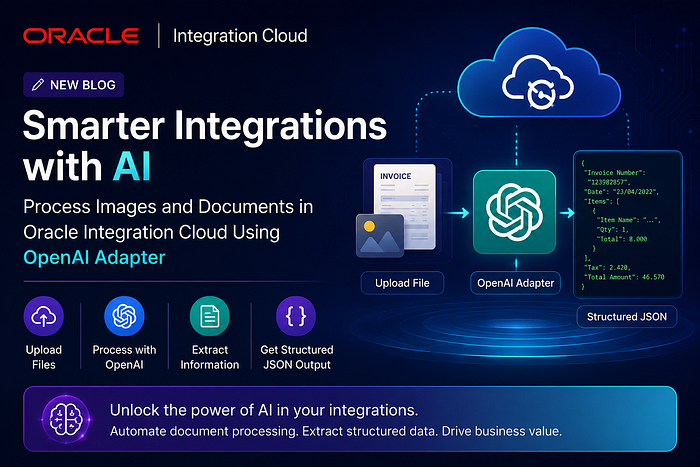
Using only the native OpenAI Adapter, I was able to:
- Upload files to OpenAI
- Retrieve and reuse File IDs
- Process images and PDF documents
- Extract structured JSON responses
- Analyze multilingual content, including Arabic and Persian documents
In this article, I’ll walk through the approach, the architecture, and a few practical use cases that I tested while building the POC.
By the end, you’ll have a reusable pattern that can be applied to invoice extraction, document processing, content analysis, and many other AI-powered integration scenarios.

Understanding the Architecture
While building the POC, I decided to separate the solution into two integrations.
The first integration is responsible for uploading a file to OpenAI and obtaining a File ID.
The second integration uses that File ID together with a prompt to process the document and return a structured response.
I found this approach cleaner because the uploaded file becomes a reusable asset. The same file can be analyzed multiple times using different prompts without uploading it again.
Integration 1 — Upload File
The first integration accepts a file and uploads it using the OpenAI Adapter’s Upload File operation.
Supported examples include:
- Images (JPG, PNG)
- PDF documents
- Microsoft Word documents
The adapter returns a unique File ID similar to:
file-xxxxxxxxxxxxxxxx
This File ID can then be stored, logged, or passed to another integration for processing.
Integration 2 — Process File
The second integration receives:
- A File ID
- Processing instructions
It then invokes the OpenAI Adapter using the Responses operation.
Depending on the type of document and the prompt provided, OpenAI can:
- Extract invoice data
- Analyze documents
- Summarize content
- Return structured JSON
- Process multilingual text
The response can be consumed directly within OIC and mapped to downstream systems.

High-Level Flow
The overall process looks like this:
Document
(Image/PDF/DOCX)
 |
 v
+------------------+
| Upload File |
| OpenAI Adapter |
+------------------+
 |
 v
 File ID
 |
 v
+------------------+
| Responses API |
| OpenAI Adapter |
+------------------+
 |
 v
 Structured Output
 (JSON)
One thing I particularly liked about this pattern is that it relies entirely on the native OpenAI Adapter. There are no custom REST calls, no manual API payload construction, and no need to manage Base64-encoded content.


Building Integration 1 — Uploading Files to OpenAI
The first integration is responsible for uploading a document to OpenAI and obtaining a File ID that can be reused later.
In my case, I tested the following file types:
- JPG images
- PNG images
- PDF documents
- Microsoft Word documents
Step 1 — Create the OpenAI Connection
Start by creating a connection using the OpenAI Adapter.
Provide:
- OpenAI API Key
- Connection Name
- Security Configuration
Once the connection is successfully tested, it can be used within your integration.

Step 2 — Create the Upload File Integration
Create an App-Driven Orchestration.
2.1 Add Trigger Rest Adapter to Accept File as input with:
– Select the multipart attachment processing options
- Request is multipart with payload
- Multipart request is of type multipart/form-data with HTML form payload
2.2 Add the OpenAI Adapter and select the following operation:
Upload File
This operation allows OIC to upload a file directly to OpenAI without invoking the REST API manually.
Step 3 — Configure the Request Mapping
The Upload File operation expects two important pieces of information:
Purpose
The purpose determines how the uploaded file will be used.
For image processing:
vision
For document processing (PDF, DOCX, TXT, etc.):
user_data
File Content
Map the incoming attachment or file reference to the adapter’s File element.
Example mapping:
RequestWrapper
 ├── Purpose
 └── File
 └── streamReference
The adapter handles the upload process and stores the file within OpenAI.

Step 4 — Execute the Integration
After activation, invoke the integration with a sample document.
If the upload succeeds, the response contains a File ID.
Example:
file-3UoRxBRyqV7pJRgPC4WSgi
This File ID becomes the bridge between the upload step and the document processing step.


Lesson Learned: File Names Matter
While testing the Upload File operation, I ran into an issue that took a little time to troubleshoot.
Some uploads failed when the file name contained spaces or special characters.
For example:
WhatsApp Image 2026-06-05 at 7.25.23 PM.jpeg

After renaming the file to a simpler format without spaces or special characters, the upload completed successfully.
Example:
invoice_20260605.jpeg
If you encounter unexpected upload failures, one of the first things to check is the file name.
Although this may vary depending on the adapter version and environment, using clean file names is a good practice and helped avoid issues during testing.
Why the File ID Matters
Initially, I assumed I would need to send Base64 content to OpenAI every time I wanted to analyze a document.
The File ID approach is much cleaner.
Once the document is uploaded:
- The file can be reused
- Multiple prompts can be executed against the same file
- There is no need to repeatedly transfer the document
This makes the pattern both efficient and easy to maintain.
At this stage, we have successfully uploaded a document and obtained a File ID.
The next step is where things become interesting: using that File ID to extract meaningful information from the document.
“This was the point where I realized the adapter was capable of much more than chat-based interactions. The File ID effectively turns the uploaded document into a reusable asset that can be processed multiple times.”
Building Integration 2 — Processing Files Using the Responses API
Now that the document has been uploaded and we have a File ID, the next step is to ask OpenAI to process the file.
This is where the Responses operation comes into play.
The Responses API allows us to provide:
- Instructions (prompt)
- File reference (File ID)
- Expected output format
and receive a structured response.
Step 1 — Create the Processing Integration
Create a second integration.
This integration accepts:
FileId — Contains the OpenAI File ID returned by the Upload File integration.
FileType — Determines the type of file being processed. For images, I passed input_image, while for PDFs and Word documents, I passed input_file.
instruction — Contains the prompt or instructions that should be sent to the model.
Add the OpenAI Adapter and select:
Responses

Step 2 — Build the Request
The request consists of two content elements:
Content 1 — Instructions
The first content item contains the instructions we want the model to follow.
Example:
Extract invoice information from the attached document.
Return valid JSON only.
Include:
- Invoice Number
- Date
- Items
- Tax
- Total Amount
In the mapper:
Type = input_text
Text = <your prompt>
Content 2 — File Reference
The second content item references the uploaded file.
For image files:
Type = input_image
File Id = file-xxxxxxxx
For PDF and Word documents:
Type = input_file
File Id = file-xxxxxxxx
The File ID comes from the Upload File integration we created earlier.
At runtime, OpenAI retrieves the uploaded file and processes it together with the prompt.

Inside the Responses request, I configured the following mappings:
- Model →
gpt-4.1 - Role →
user - Content 1 Type →
input_text - Content 1 Text → Query Parameter
instruction - Content 2 Type → Query Parameter
FileType - Content 2 File ID → Query Parameter
FileId
This design allowed me to use the same integration for multiple scenarios simply by changing the values passed at runtime.
For example, when processing a restaurant invoice image, I passed:
- FileType =
input_image - FileId = OpenAI File ID
- instruction = “Extract invoice details and return valid JSON”
For a PDF document, I only changed the FileType and instruction:
- FileType =
input_file - FileId = OpenAI File ID
- instruction = “Extract page-wise content and return valid JSON”
The integration logic remained exactly the same.
Step 3 — Configure the Model
For my testing, I used GPT-4.1.
Recommended settings:
Temperature = 0
When extracting structured information, deterministic responses are generally easier to consume downstream.
Step 4 — Execute the Integration
After activation, invoke the integration using:
- File ID
- Processing prompt
- File Type
The model analyzes the file and returns a response.
A typical response might look like:
{
 "Result" : "```json\n{\n \"Invoice Number\": \"123982857\",\n \"Date\": \"23/04/2022\",\n \"Items\": [\n {\"Item Name\": \"شاورما دجاج عربية عصملية\", \"Qty\": 1, \"Total\": 8.000},\n {\"Item Name\": \"حمص\", \"Qty\": 2, \"Total\": 4.000},\n {\"Item Name\": \"فتوش\", \"Qty\": 1, \"Total\": 3.000},\n {\"Item Name\": \"تبولة\", \"Qty\": 1, \"Total\": 2.500},\n {\"Item Name\": \"بطاطا مقلية\", \"Qty\": 1, \"Total\": 2.000},\n {\"Item Name\": \"خبز صاج\", \"Qty\": 2, \"Total\": 1.000},\n {\"Item Name\": \"شاورما لحم عربية\", \"Qty\": 1, \"Total\": 8.000},\n {\"Item Name\": \"كولا زجاج\", \"Qty\": 2, \"Total\": 4.000},\n {\"Item Name\": \"لبن\", \"Qty\": 2, \"Total\": 4.000},\n {\"Item Name\": \"مية 250 مل\", \"Qty\": 2, \"Total\": 2.000}\n ],\n \"Tax\": 2.420,\n \"Total Amount\": 46.570\n}\n```"
}
What impressed me most was that the model not only extracted the invoice totals, but also correctly identified Arabic item names, quantities, and line totals, and returned them in a clean JSON structure.
Within OIC, this response can be parsed and then can be mapped directly to downstream applications or business processes.

Use Case 1 — Restaurant Invoice Extraction
To validate the solution, I started with a restaurant invoice written in Arabic.
The objective was simple:
- Upload the invoice image
- Process it using the OpenAI Adapter
- Extract business data in a structured format
Rather than returning a textual description of the invoice, the model was instructed to generate JSON containing:
- Invoice Number
- Invoice Date
- Item Details
- Tax Amount
- Total Amount
The result was surprisingly accurate.
The model successfully identified:
- Arabic item names
- Item quantities
- Line totals
- Tax information
- Grand total
This demonstrates how the OpenAI Adapter can be used as a lightweight document extraction service directly within Oracle Integration Cloud.
Potential use cases include:
- Supplier invoice processing
- Expense receipts
- Restaurant bills
- Retail receipts
- Purchase orders
For organizations already using OIC, this pattern can significantly reduce manual data entry and simplify document-driven workflows.

Use Case 2 — Processing Persian and Arabic Documents
After validating the invoice extraction scenario, I wanted to see how the adapter would perform with larger documents.
For this test, I used Persian and Arabic PDF documents containing multiple pages of text.
The goal was different from the invoice use case.
Instead of extracting business fields, I wanted to:
- Preserve the original language
- Maintain page boundaries
- Separate paragraphs
- Return a structured response suitable for further processing
The prompt instructed the model to return page-wise JSON.
A simplified response structure looked like this:
{
 "pages": [
 {
 "page_number": 1,
 "paragraphs": [
 "...",
 "..."
 ]
 }
 ]
}
The results were encouraging.
The model was able to:
- Read multilingual content
- Separate pages
- Preserve paragraph structure
- Return machine-readable JSON
This opens up interesting possibilities for:
- Digitizing legacy documents
- Knowledge extraction
- Content indexing
- Search and retrieval solutions
- Document migration projects
One important observation is that document understanding and transcription accuracy are two different goals.
For scenarios where verbatim OCR accuracy is critical, Oracle Document Understanding may still be a valuable companion service. However, for document analysis and content structuring, the OpenAI Adapter performed remarkably well.

Lessons Learned
- Use clean file names — avoid spaces and special characters when uploading files.
- Upload once, reuse many times — leverage the returned File ID instead of sending file content repeatedly.
- Parameterize your integration — File ID, File Type, and Instructions make the solution highly reusable.
- Prompt engineering matters — clear instructions significantly improve extraction quality and consistency.
- Expect an additional parsing step — JSON responses are returned inside the
Resultfield. - One integration can support multiple document types — images, PDFs, and Word documents can be processed using the same pattern.
- The OpenAI Adapter is more than chat — it can extract, understand, and structure information from documents and images.
Source Code
The complete Oracle Integration Cloud package (.car), sample prompts, and supporting assets used in this article are available on GitHub.
GitHub Repository:
https://github.com/sarfarazmerchant/oic-openai-adapter-file-processing.git
Feel free to download the package, import it into your OIC environment, and adapt it to your own document-processing use cases.
Final Thoughts
This proof of concept demonstrated that the OpenAI Adapter in Oracle Integration Cloud can do much more than chat interactions. By combining the Upload File and Responses operations, I was able to process images, PDFs, and Word documents, and transform them into structured JSON ready for downstream integrations.
The pattern is simple:
Upload File
 ↓
Get File ID
 ↓
Process with Responses API
 ↓
Receive Structured Data
For me, this was a practical introduction to AI-powered document processing in OIC, and I hope it helps other integration developers explore similar use cases.
Have you explored the OpenAI Adapter in OIC? I’d love to hear about your use cases and experiences.
Join thousands of data leaders on the AI newsletter. Join over 80,000 subscribers and keep up to date with the latest developments in AI. From research to projects and ideas. If you are building an AI startup, an AI-related product, or a service, we invite you to consider becoming a sponsor.
Published via Towards AI
Towards AI Academy
We Build Enterprise-Grade AI. We'll Teach You to Master It Too.
15 engineers. 100,000+ students. Towards AI Academy teaches what actually survives production.
Start free — no commitment:
→ 6-Day Agentic AI Engineering Email Guide — one practical lesson per day
→ Agents Architecture Cheatsheet — 3 years of architecture decisions in 6 pages
Our courses:
→ AI Engineering Certification — 90+ lessons from project selection to deployed product. The most comprehensive practical LLM course out there.
→ Agent Engineering Course — Hands on with production agent architectures, memory, routing, and eval frameworks — built from real enterprise engagements.
→ AI for Work — Understand, evaluate, and apply AI for complex work tasks.
Note: Article content contains the views of the contributing authors and not Towards AI.
Related posts
Recent Posts